Agentic GIS in ChatGPT with CARTO MCP Server


Ask around your company who uses AI every day and the answer in many cases starts with ChatGPT. It writes the first draft, reads the long document, explains the unfamiliar formula. What it cannot do, on its own, is answer a question about your places: which territories are underserved, where two stores are eating each other’s demand, how much of the book sits inside the flood zone. It has no governed route to your spatial data, no way to draw a map you can trust, and no method behind the answer.
Connecting it to a platform like CARTO changes what the tool is for. CARTO for Agents opened the platform up to agents, and the CARTO MCP Server made every part of it callable from any MCP-compatible client: maps, workflows, apps, geocoding, routes, and access to third-party data. Spatial work stops being a request routed to a small team with specialized software, and becomes something people can ask for directly, while the specialists spend their hours on the questions worth their expertise.
ChatGPT is where a lot of organizations will feel that first, simply because of how many people already have it open. It also renders CARTO maps inline, so the answer arrives as a map in the conversation rather than a file to download. This post covers what it takes for ChatGPT to act as your geospatial assistant.
Turning ChatGPT into a geospatial agent
with the CARTO MCP Server
With the MCP Server connected, ChatGPT can carry out the work rather than describe it: drawing maps, editing them, rebuilding them for another region, designing an analysis, running it, and looking after your CARTO account. Your controls come along unchanged. Every call is made as your authenticated CARTO user, written to the log where you can trace it, and executed natively in your connected data warehouse under the permissions and access rules that user already has.
From prompt to map, and back again. Ask for the map and it appears. Then keep editing in words: a different variable, a tighter classification, one layer fewer, a legend that reads properly at a glance. Analysis works the same way. Settle the method in conversation, then have ChatGPT build it as a CARTO Workflow, so what you keep is a pipeline you can open, review, fork, and schedule. Ask the same question next quarter and it runs the same way, rather than depending on whatever SQL got written that day.
Batches, not one-offs. Two hundred store catchments. Every one of them refreshed on the first Monday of the month. A scoring model rerun with a different weighting for each business unit. The obstacle was never difficulty; it was patience, and an agent has more of that than any of us. The last item in the batch gets the same care as the first.
Spatial analysis reaches further into the company. Someone who has never opened a mapping tool can ask a spatial question and act on the answer. A field operations lead asks which routes overlap. A pricing analyst runs the catchment workflow and asks what changed since last quarter. They sign in once with their CARTO account, and from then on the map comes to the question rather than the other way around.
Administration, available in the same window. The CARTO interface is still where platform work lives, and it is not going anywhere. What changes is that those same operations are available as tools, so an administrator can ask ChatGPT to review connections, add people, rotate credentials, or summarize what has been created and by whom, without leaving the conversation.
Governed and secure by design. Your data stays put. CARTO is cloud-native, so queries run inside your own warehouse. ChatGPT reaches CARTO through the same APIs that sit behind Builder, carrying your token, so existing roles, permissions, and row-level security apply with nothing new to configure. Activity Data records each action alongside the platform that made it, and your choice of model (in this case, OpenAI models) remains your own.
Connect the CARTO MCP Server to ChatGPT
Full read and write tools need a ChatGPT Business, Enterprise, or Edu workspace, and on Business a workspace admin or owner adds the server. Pro accounts can connect too, with read and fetch tools only.
- In CARTO, copy your MCP Server URL from Developers > Workflow API & MCP Server.
- Then create a client under Developers > Credentials > SPA OAuth Clients and keep the Client ID and Secret to hand.
- In ChatGPT, turn on Developer mode under Settings > Security and login, then go to Plugins, choose Add > Add custom MCP server, name it CARTO and paste the MCP Server URL.
- Leave Authentication on OAuth, open Advanced OAuth settings and change the registration method from CIMD to User-Defined OAuth Client, then enter your Client ID and Secret.
- Copy the Callback URL shown in the same panel and add it to the Allowed Callback URLs of your CARTO client (turn off “Use default logout/callback URLs and Origins” to see the field).
- Back in ChatGPT, accept the risk warning, create the plugin and sign in with your CARTO account.
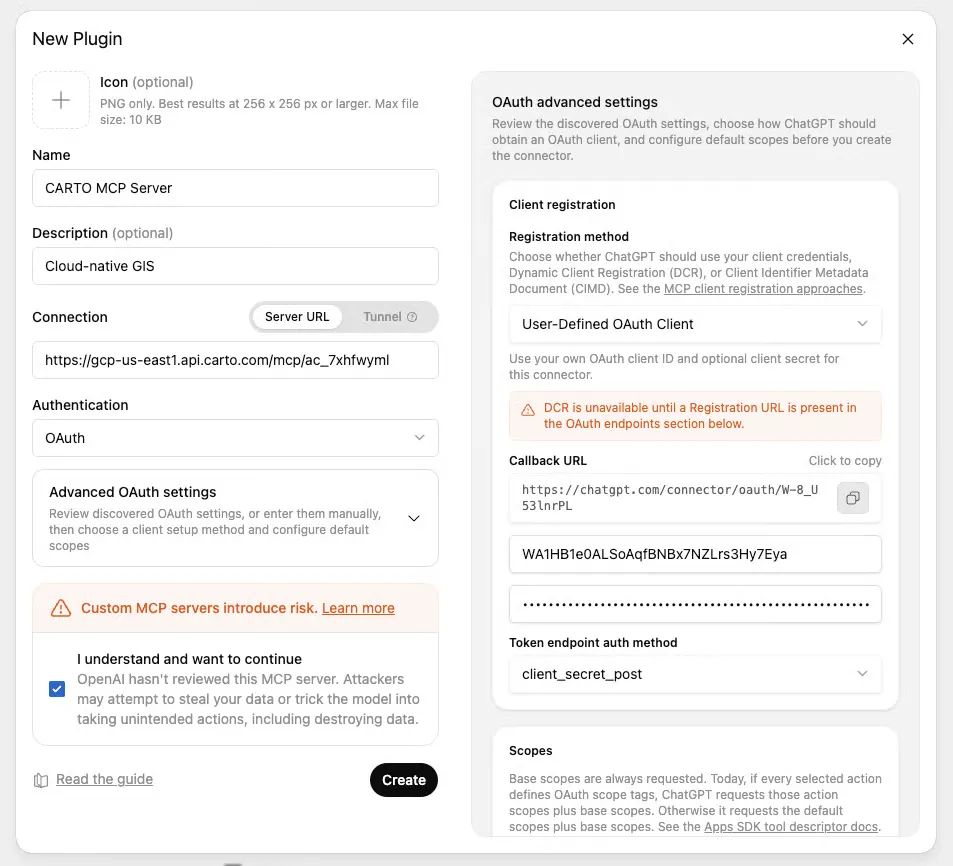
Before signing in, take the connector ID from ChatGPT’s authorization URL and register https://chatgpt.com/connector/oauth/<id> as the allowed callback URL on your CARTO OAuth client. Then connect and sign in.
A few things to be aware of: CIMD is ChatGPT’s default and won’t work with CARTO due to ChatGPT using a dynamic client identifier. Sign-ins last 24 hours, after which ChatGPT asks you to reconnect. And if you only need browsing and querying, you can authenticate with a CARTO API access token instead of OAuth, which gives read and discovery tools without authoring.
And something else you should not miss before creating your maps and workflows: give the agent the CARTO Agent Skills. They are public playbooks that teach an agent how CARTO work is actually done, from browsing a warehouse to hotspot analysis and site selection. In ChatGPT, upload the ones you need under Skills, so every chat that uses them inherits the same methods and cartographic defaults.
Full instructions are available in our documentation.
See it in action
Using ChatGPT to build an interactive hurricane tracking map
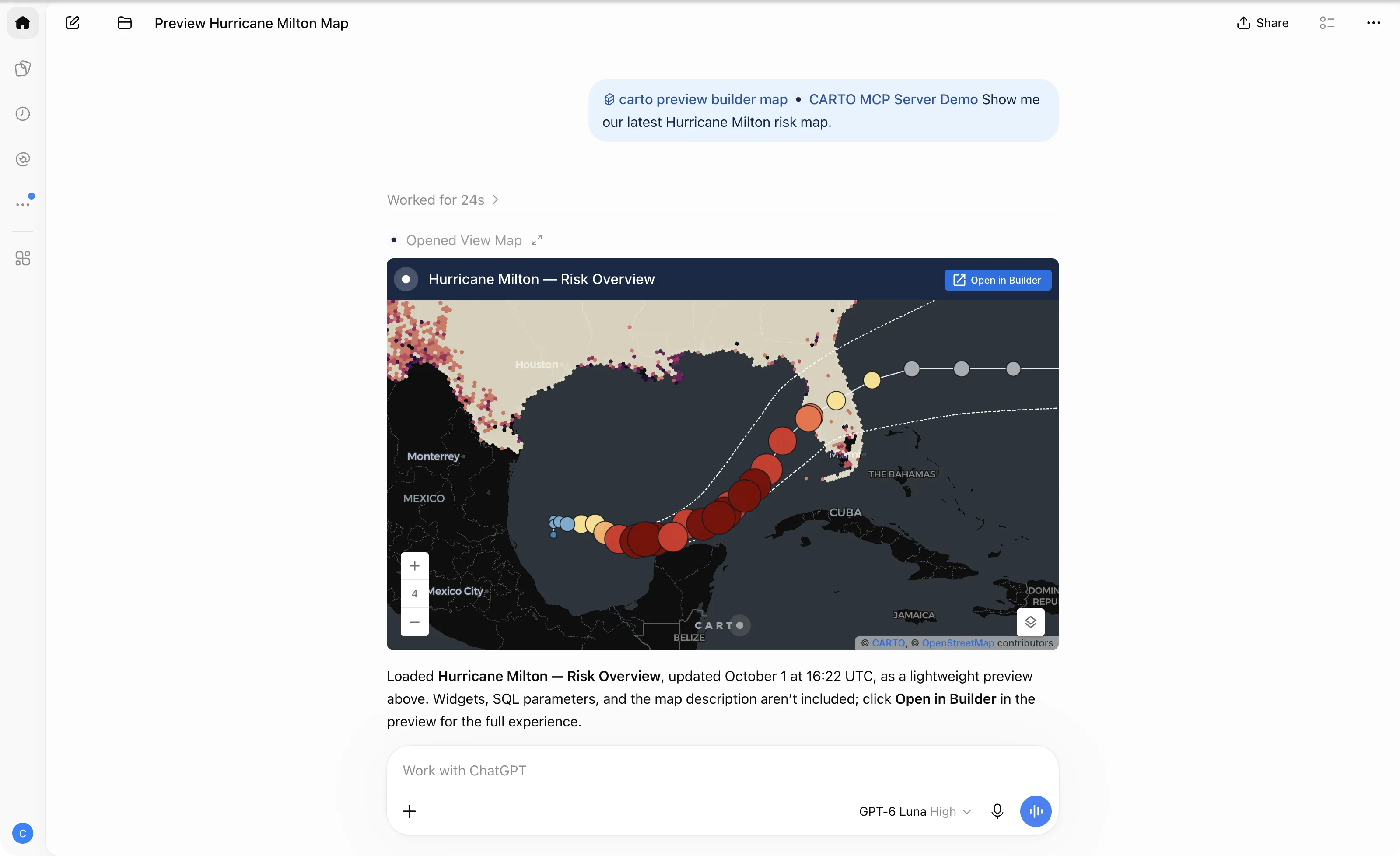
When a hurricane approaches, a risk team needs to see three things at once: where people live, where the storm is forecast to go, and how strong it is along the way. From a single request in ChatGPT, the agent built exactly that as an interactive Builder map: population on an H3 grid glowing softly underneath, the latest National Hurricane Center (NHC) forecast cone as a dashed outline, and the storm track colored by Saffir-Simpson category and sized by wind speed, on a dark basemap with popups for time, category, and wind. The layers are stacked so the track reads first and the context second, and the map previews right in the conversation before it goes to the team. When the next storm forms, the same map is one request away.
Using ChatGPT to build a hurricane exposure analysis workflow
Seeing the storm is one question. Knowing who it affects is another. Here the request to ChatGPT was analytical: for each county in the storm’s path, how many people live inside its track corridor, measured with CARTO Spatial Features, and how many hospitals fall within it. Rather than answering right away, the agent first returned its proposed plan for review, and only once the method was agreed did it build the steps as a CARTO Workflow. The deliverable is a pipeline rather than a figure: open it to see exactly how the numbers were produced, rerun it when the next hurricane makes landfall, or publish it as a tool anyone in the organization can call.
CARTO CLI: ship spatial apps and
analysis workflows with Codex
Some work needs more than a conversation. It needs a repository, a terminal, files on disk, and a build step, which is where a coding agent such as Codex earns its place: vibe coding and shipping a spatial app, or iterating on a complex analytical pipeline until the method holds up. For that, CARTO pairs the CARTO CLI with Agent Skills, playbooks that teach an agent how CARTO work is done and when to reach for the CLI rather than the MCP Server. Install the CLI with the command below, and the docs cover the rest of the setup.
npm install -g @carto/carto-cli
From there, OpenAI’s Codex can build and ship a spatial app on your data, scoping its credentials to only what the app needs, or work through a serious analysis such as site selection or distribution center placement: exploring the warehouse, validating the design against it, and leaving behind a versioned CARTO Workflow that anyone can rerun.
Start today!
If you are a CARTO customer, you are just a couple of minutes away. Add the CARTO MCP Server to your ChatGPT workspace, sign in with your CARTO account, and ask for your first map. Pair it with the Agent Skills so the agent brings geospatial judgment as well as access.
Not sure where to start, or not a customer yet? Request a demo and we will show you what your own data looks like from inside ChatGPT.
Frequently Asked Questions
What can ChatGPT do with the CARTO MCP Server connected?
It can build and edit CARTO maps that preview inline in the conversation, design an analysis and build it as a CARTO Workflow you can review, rerun and schedule, run batches such as hundreds of store catchments, and handle administration tasks like reviewing connections, adding users or rotating credentials.
Which ChatGPT plans can connect to CARTO?
Full read and write tools need a ChatGPT Business, Enterprise or Edu workspace, and on Business a workspace admin or owner adds the server. Pro accounts can connect too, but with read and fetch tools only.
Does my data leave my warehouse when ChatGPT uses CARTO?
No. CARTO is cloud-native, so queries run inside your own data warehouse. ChatGPT reaches CARTO through the same APIs behind Builder, carrying your token, so existing roles, permissions and row-level security apply, and Activity Data records each action alongside the platform that made it.
Why doesn't ChatGPT's default CIMD option work with CARTO?
ChatGPT’s default CIMD registration uses a dynamic client identifier, which CARTO does not support. Instead, create an SPA OAuth client in CARTO and choose User-Defined OAuth Client in ChatGPT’s advanced OAuth settings. Sign-ins last 24 hours, after which ChatGPT asks you to reconnect.