All of CARTO from Gemini Enterprise


Your data has already moved to the cloud. Customer tables, sensor readings, claims history, store performance: it is all sitting in the warehouse, and for many organizations that warehouse is BigQuery. What has not moved is the ability to ask a spatial question of this data. Ask where risk concentrates or which sites are cannibalizing each other, and the work still detours through a specialist GIS tool, and usually through a specialist person.
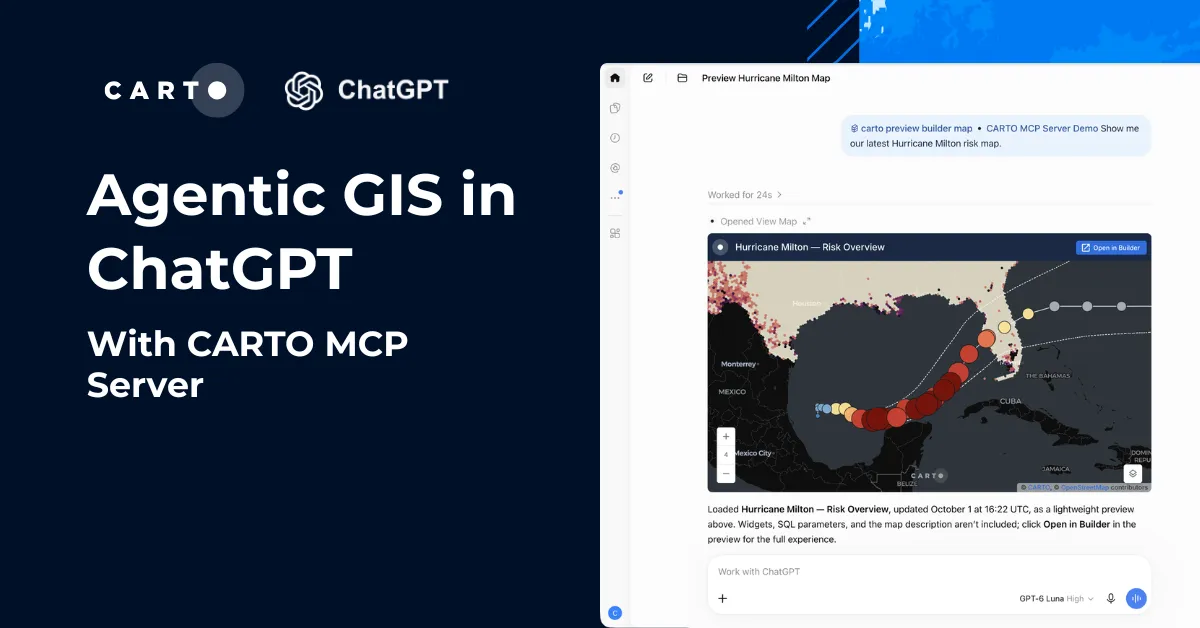
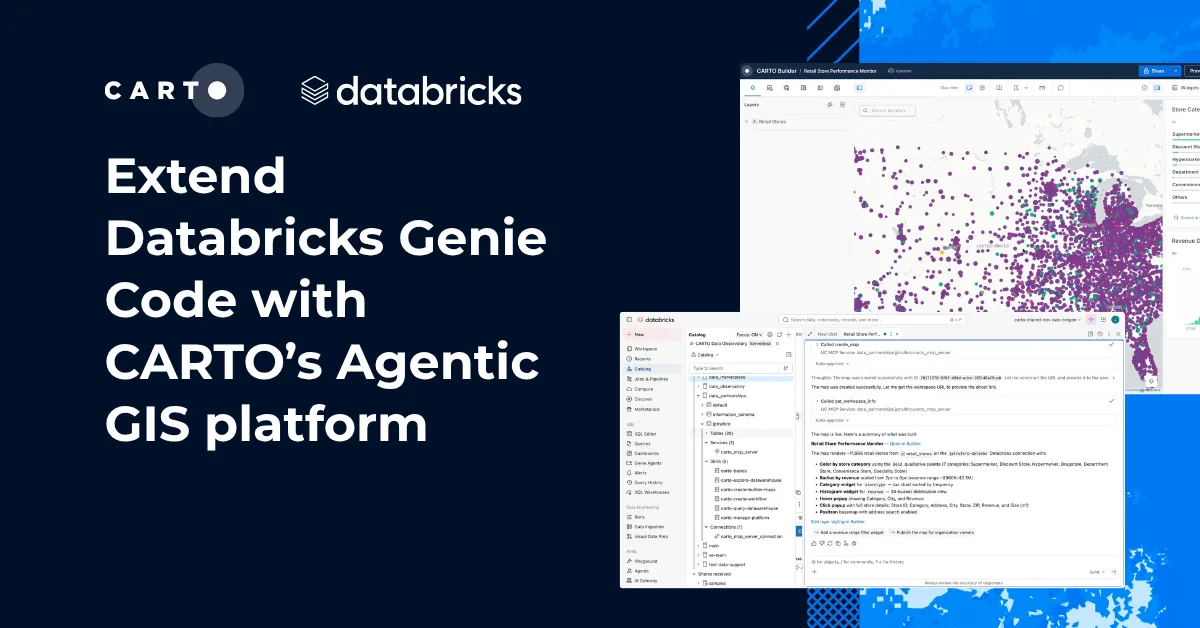
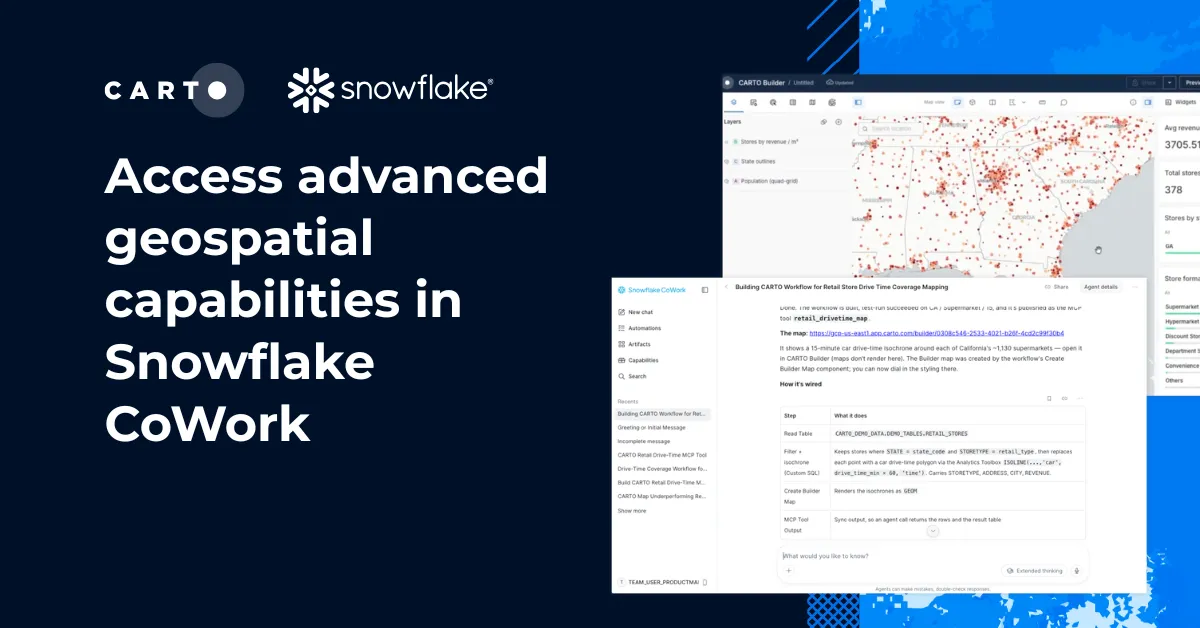
AI agents remove that detour. The agent handles the assembly, and you stay on the question. CARTO for Agents was built for that, and the CARTO MCP Server now puts the platform itself in reach of any agent that speaks MCP: maps, workflows, apps, geocodes, routes, and access to third-party data all become tools the agent can call. The gain is not only speed. GIS practitioners and analysts stop being a queue and go back to the work that needs their expertise, while the questions everyone else had parked finally get asked.
Gemini Enterprise is where a lot of Google Cloud customers are putting that agent in front of their whole workforce, governed by the same project and IAM controls as the rest of their stack. This post walks through registering the CARTO MCP Server in Gemini Enterprise, so spatial analysis happens next to the data it queries, for anyone who needs it.
Turning Gemini Enterprise into a geospatial agent with the CARTO MCP Server
By registering the CARTO MCP Server, your Gemini Enterprise agent can do geospatial work itself: draft a map, revise it, rebuild it for another market, design and run an analysis, look after your account. None of that loosens your controls. Every call arrives in CARTO as your authenticated user, is logged where you can trace it, and executes natively in your connected data warehouse under the permissions and data access rules that user already carries.
Maps and CARTO Workflows, built inside the conversation. Describe the map you want, then keep talking: swap the classification, add a layer, resize the legend, rewrite the popup. Analysis works the same way, and this is where it gets interesting. Reason through the method with the agent, then ask it to lay those steps down as a CARTO Workflow. What you keep is not a one-off answer but a pipeline anyone can open, review, fork, and rerun on a schedule, producing the same result every time rather than whatever SQL the agent happens to write that morning.
The repetitive jobs finally get done. One map per district, and there are 40 districts. A quarterly refresh across the whole set. The same scoring model run market by market with different inputs. None of this was ever impossible, only slow enough to keep being postponed. An agent is as careful on the fortieth map as on the first.
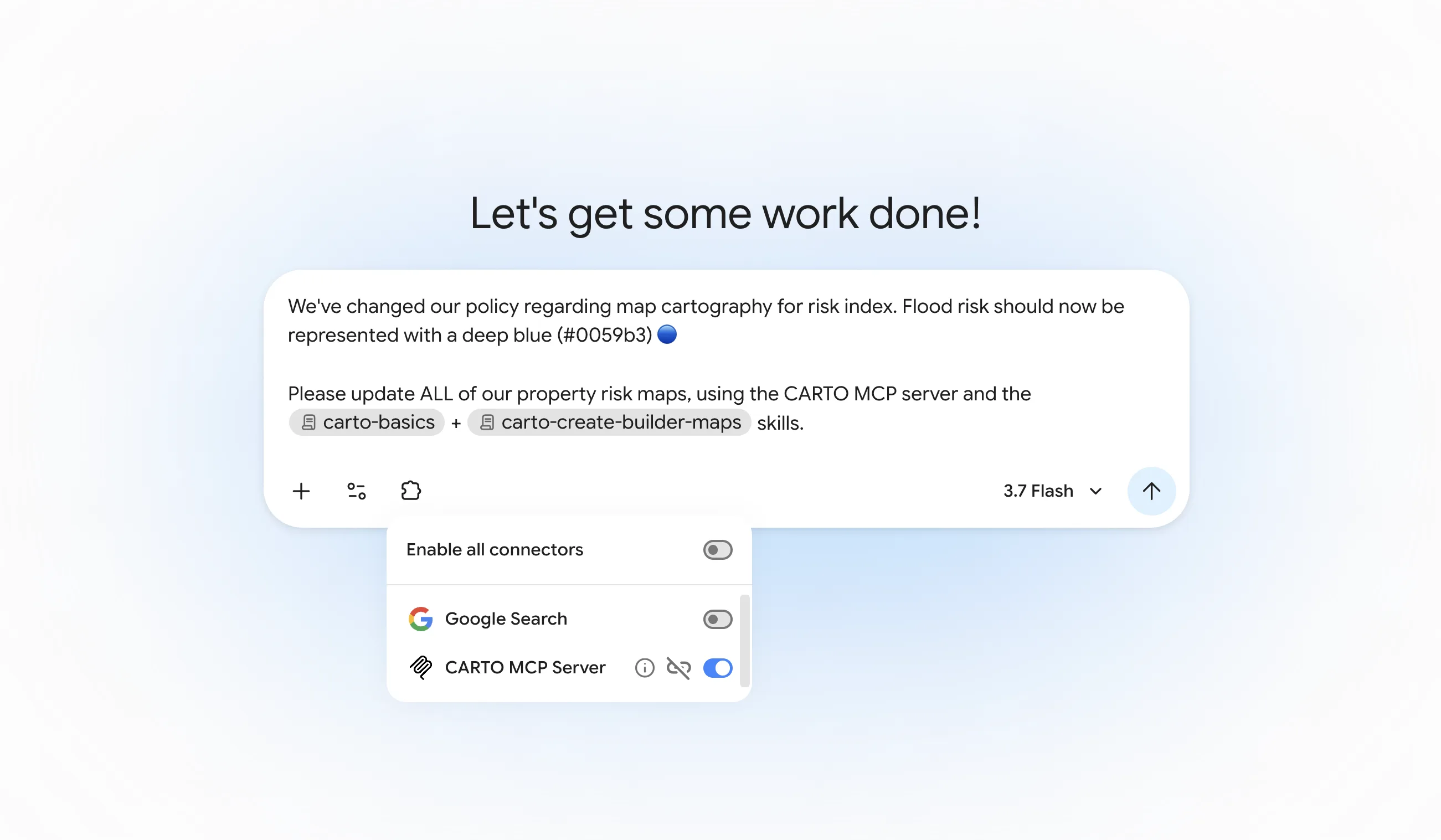
Reach beyond the people who own the tools. Distribution comes for free when the agent is already at the company's front door. A category manager asks for the store performance map and has it. An underwriter kicks off the exposure workflow, then asks what the numbers mean. One CARTO sign-in, and after that no training course to sit through and no queue to join.
Administration, in the same window. Platform work belongs here too: checking connections, adding users, rotating credentials, reviewing what has been built and by whom. Those are tools like any other, so the routine parts stop being a separate errand.
Governed and secure by design. Your data stays where it is. CARTO is cloud-native, so queries execute in the warehouse you already trust. Requests travel through the same CARTO APIs that sit behind Builder, carrying the signed-in user's token, which means existing roles, permissions, and row-level security apply with nothing extra to configure. Activity Data records each action and names the platform it came from, and the choice of model remains yours: your Google Cloud project, your IAM, your models, your governance.
Connect the CARTO MCP Server to Gemini Enterprise
You will need a Gemini Enterprise license, a Google Cloud project, and rights to create data stores in AI Applications. In short:
- In CARTO, go to Developers > Credentials > SPA OAuth Clients and create a client. Keep the Client ID and Secret on hand.
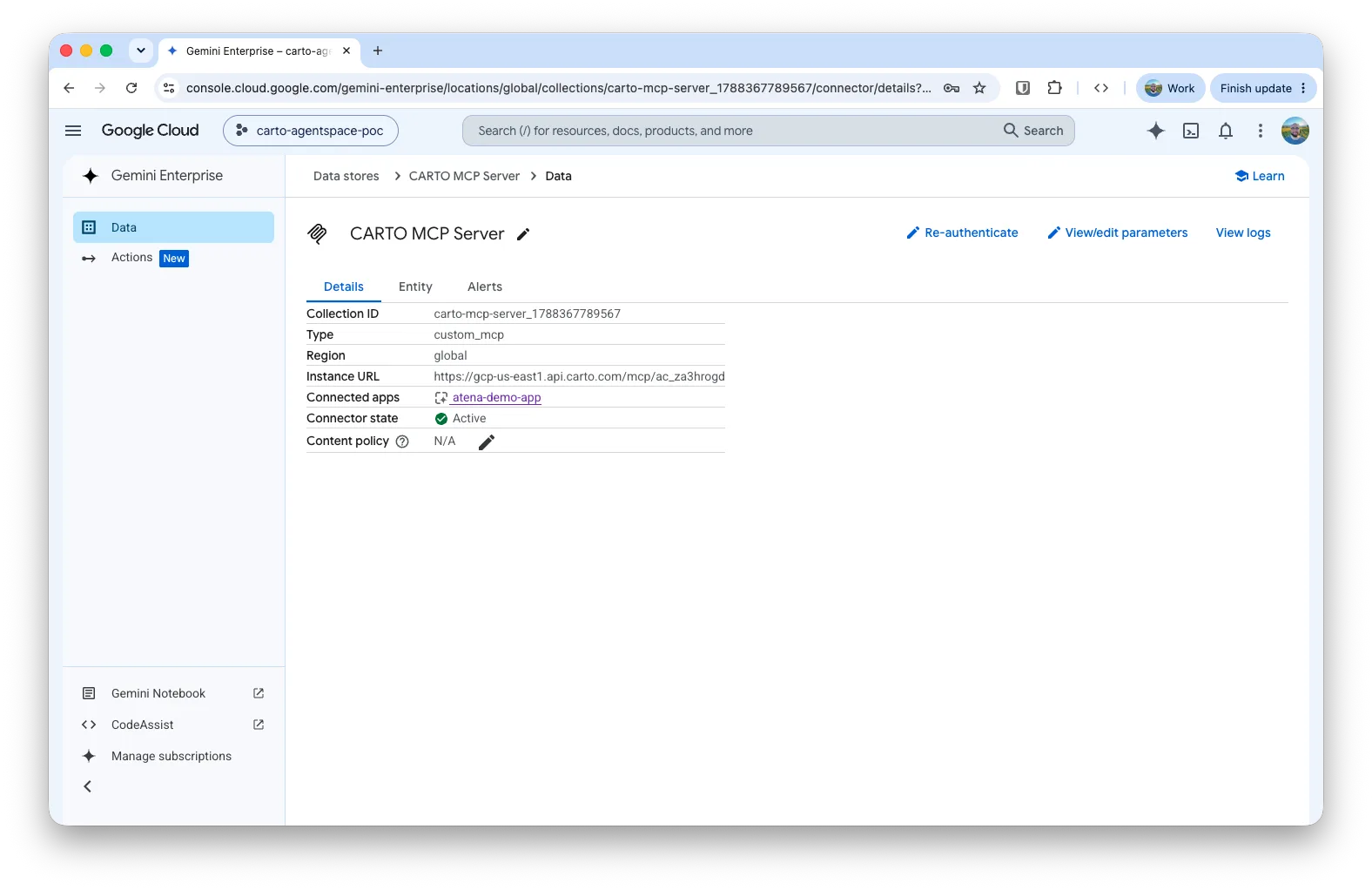
- In the Google Cloud console, go to AI Applications > Data stores and add a custom MCP server. Enter the CARTO MCP Server URL and the OAuth 2.0 details: CARTO's authorize and token endpoints, your Client ID and Secret, and the scopes listed in the docs. Include the audience parameter on the authorization URL, or the tokens will be rejected.
- Open the Actions tab, reload the custom actions to pull in the CARTO tools, and enable the ones you want. All tools are disabled by default.
- Link the data store to your Gemini Enterprise app under connected data stores, and have users authorize the connector the first time they use it in chat.
Two things to plan for. Gemini Enterprise does not render maps inline yet, so it is worth instructing the agent to return shareable CARTO map URLs instead. And registering an MCP server creates a billable data store, so remove any you are not using.
It is also worth loading the CARTO Agent Skills into your agent. They are public playbooks that teach an agent how to do geospatial work well, so it picks sensible methods, classifications, and cartography without being told each time.
Full instructions, including the exact endpoints, scopes, and screenshots, are in the Gemini Enterprise documentation.
See it in action
Using Gemini Enterprise to visualize EV infrastructure accessibility in San Francisco
In our first example we pre-calculated drive time for 60 EV charging stations in San Francisco from OpenStreetMap, and we enriched the resulting H3 coverage with population data. Then, we asked Gemini Enterprise to build a geospatial dashboard with CARTO Builder, powered by the new Gemini 3.8 Flash model.
By using the MCP Server and the carto-create-builder-maps skill, the agent was able to successfully bring the data to life, with a rich story, beautiful cartography, and chart widgets that help analyze how accessible this infrastructure is.
Using Gemini Enterprise to optimize population coverage for cell tower placement in the Denver area
The CARTO MCP Server covers not only map and cartographic features. It also covers end-to-end geospatial pipelines, powered by CARTO Workflows.
What makes this powerful is that the Gemini Enterprise agent is able to not only come up with the final analysis, but also build it in a way that it is auditable, scalable, and easy to maintain for other human or agent analysts.
This workflow, using OpenCellID data enriched with demographic features, can easily be extended, tweaked over time using new business rules, or replicated for other areas.
Start today!
If you are a CARTO customer, you are just a couple of minutes away. Register the CARTO MCP Server in your Gemini Enterprise app, sign in with your CARTO account, and the agent has the platform. Pair it with the Agent Skills so it brings geospatial judgment as well as access.
Not sure where to start, or not a customer yet? Request a demo and we will show you what your own data looks like from inside Gemini Enterprise.
Frequently Asked Questions
What do I need to connect the CARTO MCP Server to Gemini Enterprise?
A Gemini Enterprise license, a Google Cloud project, and rights to create data stores in AI Applications. In CARTO, you create an SPA OAuth client under Developers > Credentials, then register the CARTO MCP Server as a custom MCP data store in Google Cloud’s AI Applications using that client’s ID, secret, and the OAuth endpoints and scopes from the CARTO docs.
Does connecting CARTO to Gemini Enterprise loosen any of our data controls?
No. Every call from Gemini Enterprise arrives in CARTO as the authenticated user and executes natively in your connected data warehouse under that user’s existing permissions and row-level security. Nothing extra needs to be configured, and every action is logged in Activity Data along with the platform it came from.
Can a Gemini Enterprise agent build more than just maps?
Yes. Beyond drafting and revising maps in CARTO Builder, the agent can design and run CARTO Workflows — auditable, versioned pipelines built from 200+ spatial components — as well as handle platform administration tasks like checking connections, adding users, and rotating credentials.
Why doesn't Gemini Enterprise show the map directly in the chat?
Gemini Enterprise does not yet render maps inline, so the CARTO Agent Skills instruct the agent to return a shareable CARTO map URL instead. It’s also worth remembering that registering an MCP server creates a billable data store, so remove any you aren’t using.